
Contracts
Send photographers a PDF contract to sign online. Upload your contract once as a template, place the fields that get filled in, then send it from an event's staffing panel.
Contracts are included in the Pro and Business plans. On Free, the Contracts page shows a notice explaining the feature and linking to View plans, and creating or sending a contract is refused with the same explanation. Contracts already sent stay as they are: photographers can still open and sign them, but reminder emails and expiry notices pause until the account reaches Pro.
1. Create a template
- Open Contracts and click New template.
- Enter a Contract name of up to 64 characters and choose your Contract PDF, up to 20 MB.
- Click Save contract.
2. Place the fields
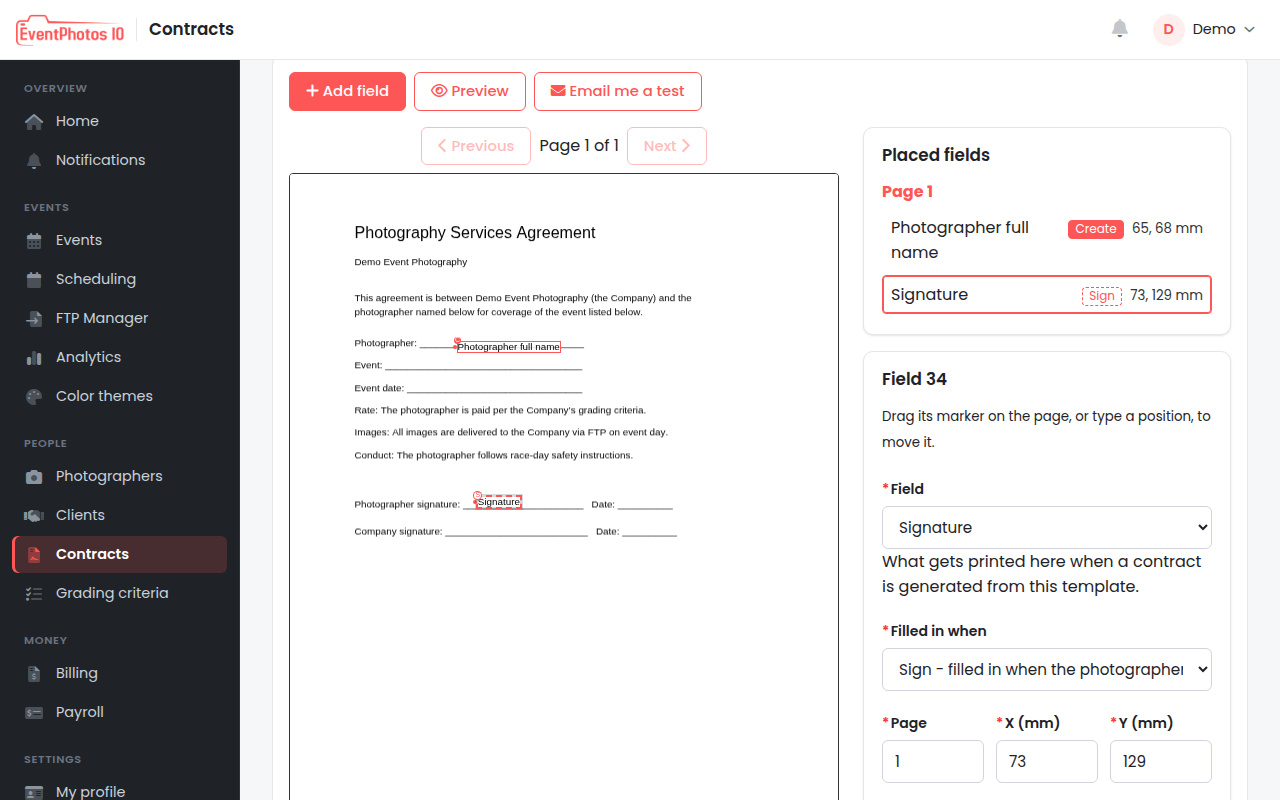
- Click Edit fields on the template.
- Click Add field, then click the page where the field should print. Press Escape to cancel.
- Choose the Field (for example Photographer full name, Photographer email address, Event date, Event end time, Your company or Signature) and Filled in when:
- Create: filled in when the contract is generated.
- Sign: filled in when the photographer signs. Only Signature, Digital signature and Current date can use Sign, and Signature always does.
- Adjust the position (in mm), font, size (4 to 96 pt), style and colour, then click Save field.
Use Preview to see the template with sample data, or Email me a test to send a copy to yourself.
3. Send a contract
- Open the event's staffing panel, on Setup › Photographers or on the Scheduling calendar.
- On the photographer's row, click Create contract, pick the template and add an optional note.
- Check the preview, then click Send to photographer. BCC a copy to myself is ticked by default.
Nothing is emailed until you press Send. Until then the row also has Change template, which deletes the unsent contract and its note and opens Create contract again, and Delete contract, which deletes the unsent contract and its PDF. The photographer stays on the event as Assigned, or choose another status in the delete dialog. Once a contract has been sent, use Revoke contract instead.
Before you can create a contract:
- the event needs a full address and a start time or photography start time;
- the photographer needs their first and last name and a full address.
What happens next
- The photographer opens the link, types their legal name, ticks the two consent boxes and accepts, or declines.
- You get a notification, and an email if your preferences allow.
- A contract expires 10 days after it's created.
- If it's still unsigned 48 hours before it expires, the photographer gets one reminder email.
- Expired contracts are marked Contract Expired, and you're notified.
- A contract can be answered once. Submitting it again after it was signed, declined or expired shows "This contract has already been signed.", "This contract has already been declined." or "This contract offer has expired." and changes nothing.
Revoke a contract
A contract that has been created, sent or signed can be revoked until the event starts (the earlier of the photography start time and the event start time, or the event date when neither is set).
- In the staffing panel, click Revoke contract on the photographer's row.
- Choose My decision (Contract Revoked) or Photographer's request (Contract Backed Out) and click Revoke contract. The contract and the assignment both take that status. The photographer stays on the event's list, and the signed PDF is never changed.
- Choose whether to notify the photographer. No ends here. Yes shows your saved revocation notice (required), an optional personal message and BCC a copy to myself, ticked by default. Click Send.
The notice is emailed with the subject "Revocation of Assignment – Event name, Event date" and the contract PDF attached. It's logged under Contract revoked. You get a Contract revoked notification.
Changing an assignment's status to Contract Revoked or Contract Backed Out with Edit assignment revokes the contract the same way and offers the same notice.
After a revoke you can create a new contract for the same photographer and event.
The photographer's contract link then says "This contract has been revoked.", and their all-contracts page shows the Issued, Expires, Signed or declined and Revoked dates. The photographer's details page shows a Revoked or Backed out badge with the date.
Contract settings
On the Contracts page, under Contract settings:
- Send contract emails from: System address sends contract offers, reminders and revocation notices from EventPhotos IO with replies going to your account email. My send-as address sends them from your verified primary send-as address with your signature. It can't be chosen until send-as is enabled for your account and you have a verified primary address.
- Revocation notice text: your own legal wording for revocation notices. There is no default.
[Event Name],[Location],[Event Date]and[Company name]are replaced with the event's details and your company name.
Limits
- A photographer can have only one pending or accepted contract per event.
- A contract can't be revoked, and a revocation notice can't be sent, once the event has started.
- If a send fails, you can retry after 15 minutes.
- Only you, signed in to the account that owns the event, can send or resend a contract. Having the contract link isn't enough.
- An expired contract can't be signed or declined. Its link says "This contract offer has expired."
- Deleting a template doesn't affect contracts already issued from it.