
Event costs and credits
Each event shows the credits its photos have used. Watch the number build up in real time, and plan it in advance with upload settings.
Before you upload
Setup › Upload settings shows "You will pay X per image, or Y for N images" in credits for your current settings. Change resolution, touch-up, sharpening or bib tagging and the number updates. Set Maximum number of photos to cap the credits browser uploads can use. The credits per photo are listed in Pricing and credits.
While the event runs
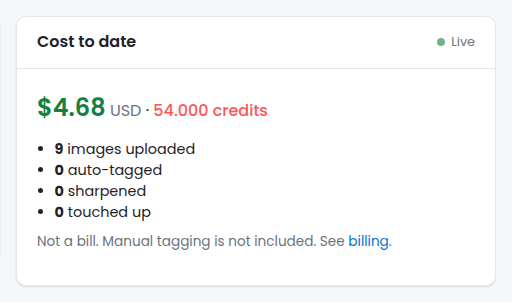
The Cost to date card on the Overview tab of a Live event shows:
- Credits used: the credits this event has drawn from your balance, including storage renewals, minus any credits given back;
- photos uploaded, auto-tagged, sharpened and touched up.
Manual tagging is free. Click through to Billing for your balance and history.
Will your balance cover it?
The Credits card on the Overview tab puts your balance beside what this event still needs:
- Your balance, plus any overdraft your plan includes;
- Queued uploads: credits for photos waiting to import into this event (FTP and browser uploads, including any Awaiting credits) and photos waiting to be auto-tagged;
- Rest of the upload limit: credits for the photos still allowed under Maximum number of photos, at the current upload settings;
- the credits per photo at the current settings, broken down into upload and hosting, Large or Jumbo size, touch-up, sharpening and automatic bib tagging.
The badge and message say whether your balance covers the queue and the rest of the limit, and about how many more photos it covers at these settings. Photos queued in your other events use the same balance, so they're counted too. If it doesn't cover them, Buy credits opens the purchase page with the shortfall filled in. After you change upload settings, reload the page to update the estimate.
When credits are spent
- Upload, touch-up, sharpening: when each photo is imported. FTP imports are charged immediately.
- Automatic tagging: charged once per photo, when it's sent for tagging. If it can't be tagged, the credits are given back, and sending that photo for tagging again charges it again.
- Not enough credits: photos wait as Awaiting credits and import automatically once you buy credits.
- Manual tagging: free.
- Storage renewal: per photo, for another 12 months, when its hosting ends at the end of a month, if you renew it or auto-renew is on. Shown on the event's Hosting card. See Storage and renewals.
Keep costs down
- Turn off Accept image uploads once the event is finished.
- Test touch-up and sharpening on a few photos before turning them on for everything.
- Use Regular resolution unless you need bigger files.