
Monitored folders
A monitored folder imports new photos automatically. Every photo uploaded into it lands in the event and image folder you choose, usually within a couple of minutes.
Set up a monitor
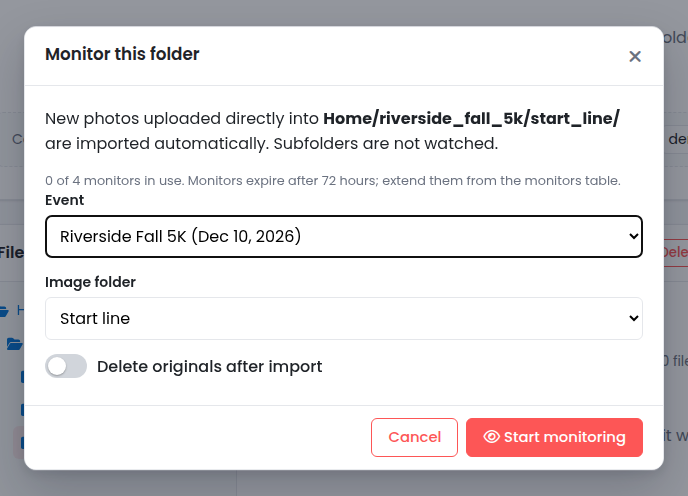
- Open FTP Manager and click the folder to monitor. Your home folder can't be monitored.
- Click Monitor this folder.
- Choose the event. Only events with Accept image uploads turned on are listed.
- Choose the event's image folder.
- Choose whether to turn on Delete originals after import:
- Off (the default): each file is moved to the folder's hidden
.importedfolder after import and deleted 3 days later. Keep your own copy. - On: each file is permanently deleted from FTP once it has been imported. Files that are rejected or fail to import are never deleted.
- Off (the default): each file is moved to the folder's hidden
- Click Start monitoring.
How it works
- Only photos placed directly in the monitored folder are imported. Subfolders are ignored.
- A file is imported once it hasn't changed for 60 seconds, so photos still uploading are left alone until they finish.
- The first time a monitor finds files, you get an "upload started" notification.
- Credits are charged as each photo is imported.
Expiry
- A monitor runs for 72 hours and then stops.
- You get a notification and an email 12 hours before it expires, linking to the FTP manager. Turn the email off under Communications.
- To keep importing, click Extend to 72h on the row in the monitored folders table. It resets the monitor to 72 hours from now. The button only appears once the monitor has less than 24 hours left; before that, nothing is shown there.
Stop a monitor
In the monitored folders table, click Disable on the row and confirm. Deleting a folder also stops any monitors on it or inside it.
Limits
- Each folder can have only one monitor.
- How many monitors you can have at once depends on your account. See Monitor limit.
- The Delete originals after import choice can't be changed later. Disable the monitor and create a new one instead.