
Scheduling
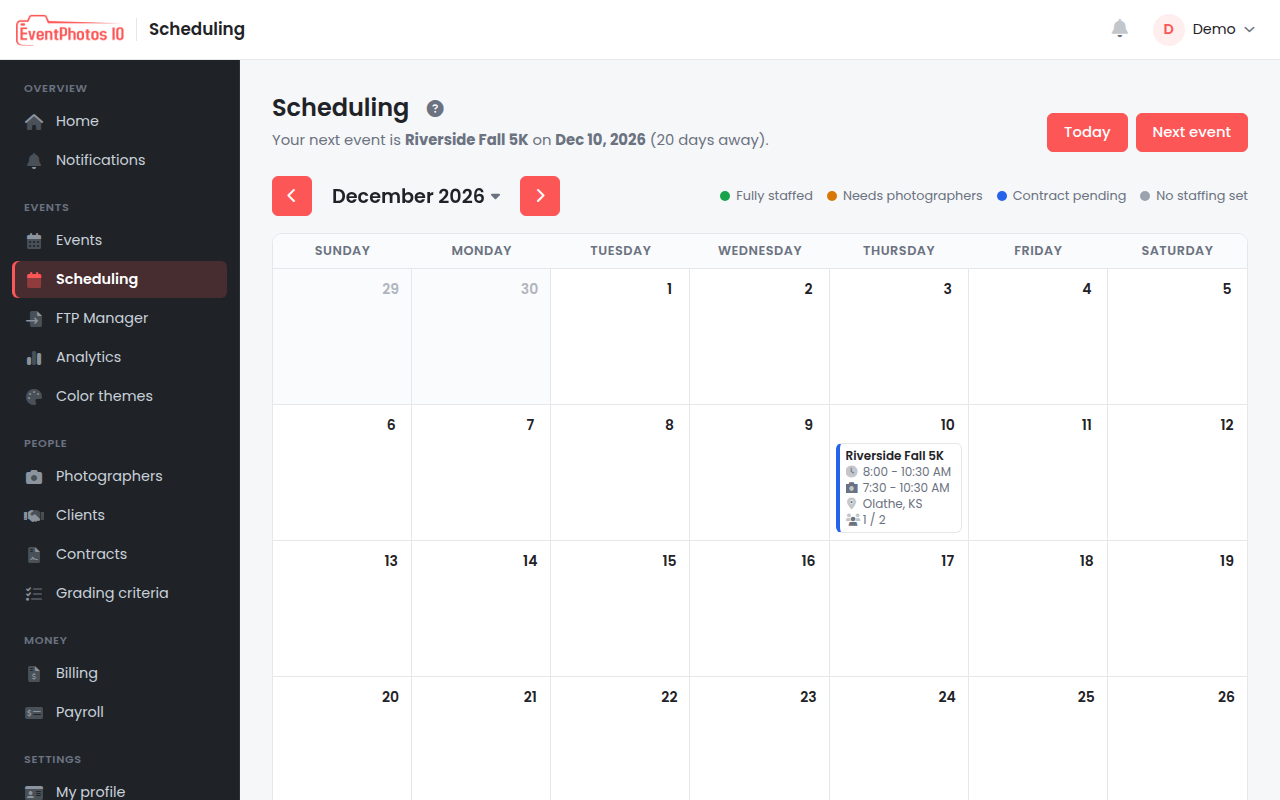
The Scheduling calendar shows every event by month and how well staffed each one is. You can edit an event's logistics and staffing without leaving the calendar.
Get around
- The calendar opens on the month of your next event. An event dated today (in the event's own timezone) counts as your next event, so on an event day the calendar opens on the current month.
- Today jumps to the current month, and Next event jumps to your next upcoming event, including one dated today.
- Use the arrows or the month picker to change months.
- Switch between Month and Full month views.
- The header shows your next event and how many days away it is, or "today" when it's dated today.
Each day shows up to 3 events, then "+N more". Each event shows its times, city and "assigned / needed".
Create an event from the calendar
- Click an empty part of a day to open the Create a new event form with that date filled in. Days outside the month you're viewing can't be clicked.
- Click a day's date number to see that day's events, then click Create event on this day.
- Create event at the top of the page opens the same form without a date.
- On a phone in Month view, tap a day, then tap Create event on this day.
See Create an event for the form's fields.
Staffing colours
| Colour label | Meaning |
|---|---|
| Fully staffed | At least as many photographers assigned as needed |
| Needs photographers | Fewer assigned than needed |
| Contract pending | Still short, but a contract is out for signature |
| No staffing set | None needed and none assigned |
Only Assigned, Scheduled and Contract Accepted count as assigned.
Edit an event from the calendar
Click an event to open it.
- Details: address, event times, photography times and Photographers needed (0 to 100). Times are in the event's own timezone.
- Staffing: assign photographers, see the closest available people, and create or send contracts. See Logistics and event photographers.
- Open event goes to the full event page.
Assignment statuses
- Green (counted): Assigned, Scheduled, Contract Accepted.
- Amber (pending): Pending, Contract Created But Not Sent, Contract Issued.
- Red (not working): Unavailable, Declined, Canceled and the contract outcomes Declined, Revoked, Expired and Backed Out, plus Offer Expired.