
Watermarks
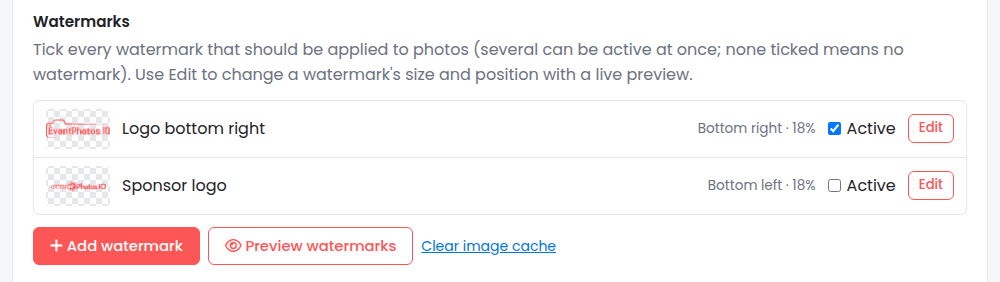
A watermark is a logo drawn on the photos your participants see. On Pro and Business you can upload several per event, place each one, and choose which are active. On the Free plan each event can hold one watermark.
Add a watermark
- Open the event and go to Setup › Branding › Watermarks.
- Click Add watermark and choose a JPEG or PNG file between 5 KB and 1 MB. A PNG with a transparent background works best.
- Upload it. It's added inactive, at the bottom right, 18% of the photo's width and 2% from the edges.
- Click Edit to place it (see below), then tick Active.
Position and size
In the Edit window:
| Field | Range |
|---|---|
| Watermark name | 1 to 32 characters |
| Position | Bottom left, Bottom right or Span bottom (centred across the bottom) |
| Width | 3 to 100% of the photo's width |
| From bottom | 0 to 100% |
| From right / From left | 0 to 100%, used by Bottom right and Bottom left |
Use Vertical sample or Preview on event photo to check the placement before saving.
Delete a watermark
Click the trash icon on the watermark's row, or Delete watermark in the Edit window, then confirm. Deleting can't be undone. If the watermark was active, photos stop showing it and the image cache is cleared for you.
Preview and image cache
- Preview watermarks shows all active watermarks on vertical and horizontal samples. Once the event has a visible photo, you can also preview on a real one and click Another photo to try more.
- Participants see cached copies of watermarked photos. After you change watermarks, click Clear image cache so the gallery shows the new version.
Tips and limits
- On Free, each event can hold one watermark. When the event already has one, Add watermark opens with "Your Free plan allows 1 watermark per event. The Pro plan allows more. To use a different one, delete the current watermark first." and a View plans link, and no file can be chosen.
- On Pro and Business you can have several watermarks active at once. If none is ticked, photos have no watermark.
- Uploaded watermarks are resized to fit within 700 px.
- You can't upload two watermarks with the same file name to one event.
- Copying Branding from another event copies its watermarks and clears the cache for you. On Free, watermarks aren't copied if that would leave the event with more than one; the rest of the branding is still copied.