
Event analytics
An event's analytics report shows how participants found and used their photos. Open it from Analytics › View, or from All analytics on the event.
What's in the report
- Lifetime event statistics: the headline numbers.
- Statistics by photo location: results for each image folder.
- User search & interaction: a chart of activity over time. It starts at the event date and covers 14 days; change the range with the start and end dates.
- Show search behavior: how participants searched. Only bib numbers and names are recorded; searches with other characters are not counted.
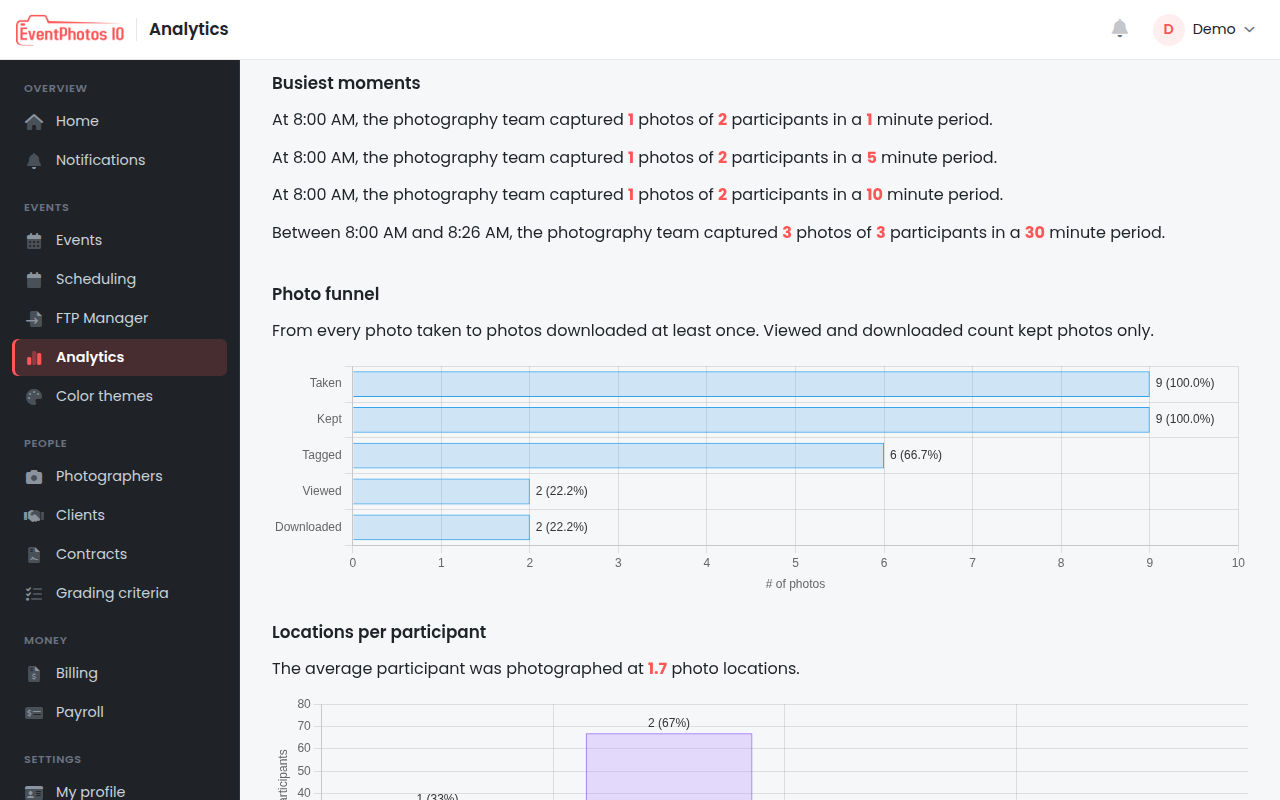
- Event insights:
- Busiest moments
- Photo funnel: Taken → Kept → Tagged → Viewed → Downloaded
- Locations per participant
- Searches that found nothing: bibs people looked for but didn't find. Useful for spotting tagging gaps.
Sales figures
For an event set to Paid or Hybrid, the statistics list adds Photo sales (before sales tax), Orders and Photos sold, and a Sales section shows:
- Average order, single photo and bundle orders, conversion (orders per unique search) and refunds or chargebacks.
- Sales by day: a chart you can set with its own start and end dates.
- Top bibs and searches by revenue: a bundle counts toward the search it was bought for, a single photo toward each bib tagged on it.
A shared analytics link shows these only for a Paid event, and never the top bibs and searches. For Hybrid and free events it shows nothing about sales. Buyer emails are never shown.
Participant estimates
Click Add/Edit photo metrics to record how many people took part:
- Estimated participants (at least 1), with the Estimate source and an optional source URL.
- Fetch finishers from RunSignup, MTEC, RaceResult or RTRT.me, or import a participant CSV with first name, last name and bib. Fetching from RunSignup, MTEC, RaceResult or RTRT.me is on the Pro and Business plans; on Free you see an upgrade notice instead. The participant CSV upload works on every plan.
- Turn on Show on analytics page to include the estimates in the report.
Photographer insights
Below the event insights, the dashboard also shows photographer insights. See Photographer insights.