
Share the gallery
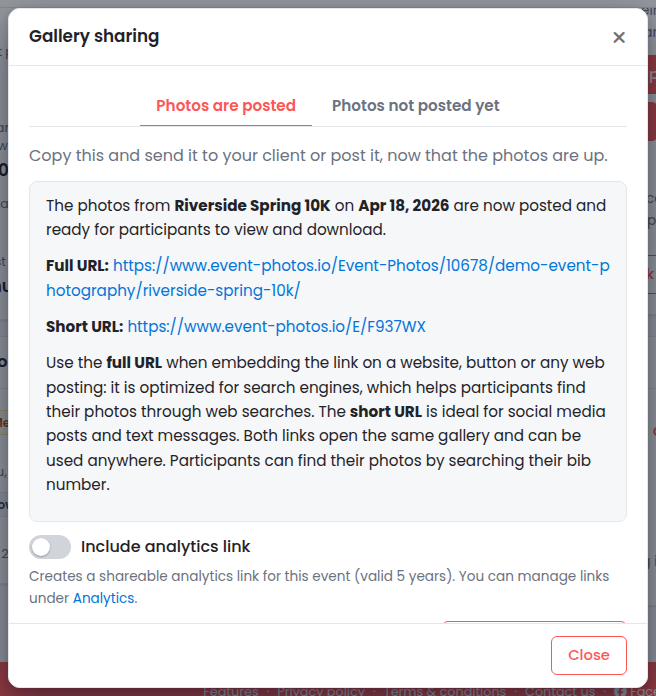
Gallery sharing writes a ready-made announcement with your gallery links. Copy it anywhere, or email it straight to your client.
Write the announcement
- Open the event and click Gallery sharing on the Overview tab.
- Choose Photos are posted or Photos not posted yet. Photos are posted is selected when the event is Live.
- To give your client a view of the results, turn on Include analytics link.
- Click Copy to clipboard and paste the text into an email, a social post or a text message.
The text includes both the full URL and the short link. Use the full URL on websites, and the short link for social posts and texts.
The analytics link
When you turn on Include analytics link, your newest active analytics link is reused. If there isn't one, a new link named "Gallery sharing – {date}" is created, valid for 5 years. Anyone with the link can see the event's statistics without logging in. See Shareable analytics links.
Email it to the client
The Email this to the client section appears when:
- you have a verified send-as address (see Notifications and communications);
- the event has a client;
- that client has an active contact with an email address.
Pick the contact, edit the subject (up to 256 characters), choose whether to BCC me, click Preview email if you like, then Send. If something is missing, the window tells you what.
Tip
Share the link while the event is still Draft. Visitors see a "not quite ready yet" page until you go Live.