
What participants see
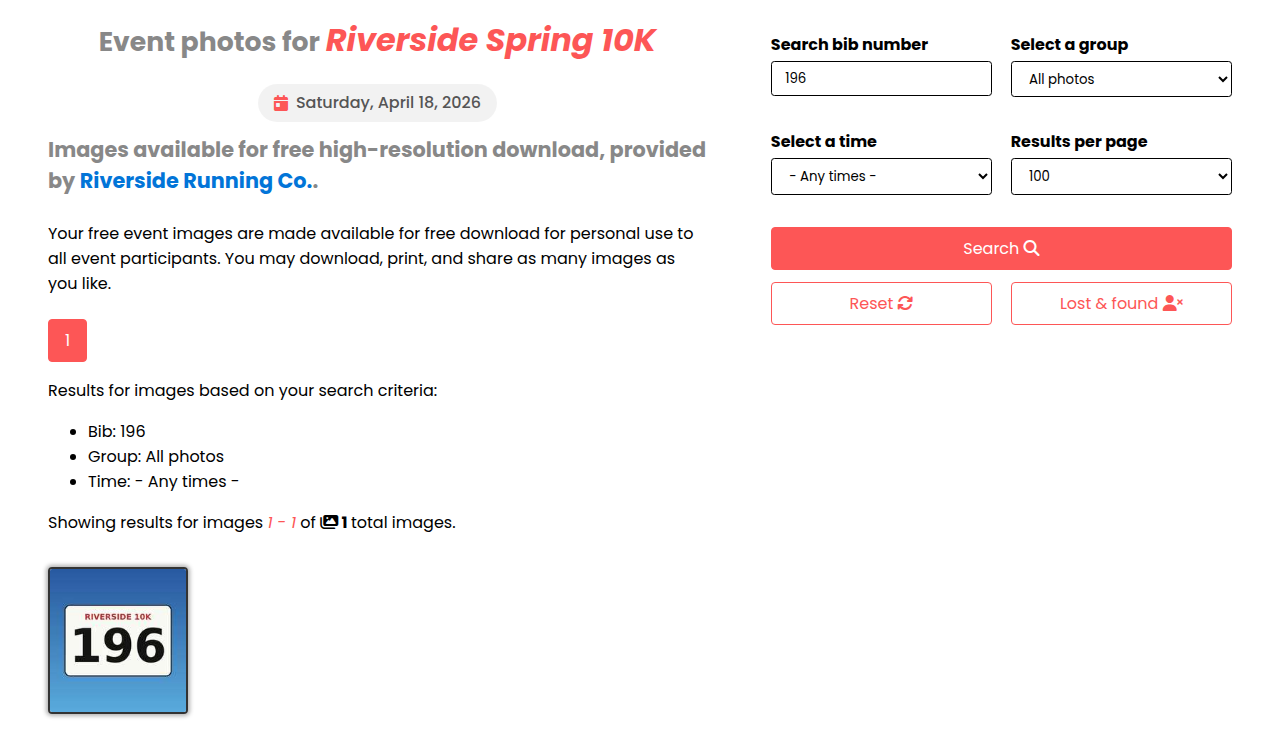
Your participants find their photos on the event's public gallery. Here's what they see, so you can answer their questions.
Finding photos
- Search bib number or name: type a bib to see every photo tagged with it. If you've imported participant names, a name works too: one word matches a first or last name, a full name like "Jane Smith" matches only that person. Suggestions appear as they type.
- Toggle advanced options:
- Select a group: your image folders;
- Select a time;
- Results per page: 50, 100 or 500;
- Lost & found: photos with no tags, for people who can't find themselves by bib.
- If you've imported race results, the participant's result is shown with their photos.
- While photos are still being added or tagged, a banner tells participants to check back.
Viewing and downloading
- Click a photo to open it, use the arrows or arrow keys to move between photos, and press Esc to close.
- Download free image saves the photo. Right-clicking a photo shows a message pointing to the download button. A Paid gallery has no free download (see below).
- Add tag lets participants suggest a tag for a photo in the gallery they're viewing.
- A view is counted once each time a photo is opened, and a download once each time it's downloaded. Your own visits while logged in aren't counted.
When you sell photos
If you sell photos from the event (set in its Setup › Photo sales card, see Selling photos), the gallery changes with the event's sales mode:
- Paid: the heading says photos are available to buy. The grid shows the usual small thumbnails. A photo opened in the viewer is a preview: your active watermarks plus a repeating diagonal text (your preview text, "PREVIEW" by default) at about 50% opacity, at most 1,200 pixels on the long edge. The original is never sent to the gallery. Download free image becomes Buy photo with the price. Right-click and drag are turned off in the grid and the viewer; that only deters casual saving, the watermarked preview is the real protection.
- Hybrid: the gallery looks like a free one and Download free image stays the main button, so make sure the event has an active watermark. Under the photo details in the viewer, a short note gives the size of the free watermarked download and a purchase link for the full-resolution file without a watermark, plus View all photos for your bib when the photo is tagged.
- Both: after a bib or name search that finds two or more photos, buyers can tick photos in the grid (or Select in the viewer) and buy them, or buy every photo the search finds as one bundle. Both use your bundle price for the number of photos. On a Paid gallery the bundle offer sits above the results, the tick circles are always shown and a bar at the bottom of the page shows the ticked photos and their price. On a Hybrid gallery everything is in a one-line note below the results: the tiles look like a free gallery until the buyer clicks tick the photos you want, and the count, price and Buy without a watermark link then appear in the same note.
Buyers give an email address and pay on Stripe's checkout; no account is needed. They land on an order page with a download link for each photo, and get the same links by email. Links give the original, unwatermarked file and work for 30 days, as often as needed. All photo sales are final; buyers don't get refunds. If sales are paused for your account, a Paid gallery keeps its previews and says "Photos from this event are not for sale right now." Buying photos is the page to send buyers who have questions.
Limits that stop scraping
To keep bots from copying a gallery, each internet connection (IP address) can run 60 new searches a minute and 1,000 an hour, and open or download 500 full-size photos an hour from one event. Paging through results doesn't count as a search. Real participants never get near these limits, even at the busiest races. Anyone who goes over sees "Too many searches. Try again in a few minutes." or "Too many downloads. Try again in a few minutes." Your own visits while logged in are never limited.
Full-size photos open on the gallery itself, directly (for example from a saved link or an email), or from a link clicked on another site. Other websites can't show them embedded in their own pages, except a domain you've authenticated for send-as email.
Gallery footer
The bottom of every gallery, and of a buyer's photo order page, shows a footer in the event's color theme (the standard colors when the event has none):
- Powered by EventPhotos IO, linking to our home page.
- Your public details, separated by dots: your business name, your company website and your company Facebook page from Your profile, and your participant Contact email from Branding › Branding settings only when Show to participants is on. Anything you haven't set is left out.
- "{Your business name} uses EventPhotos IO to host these event photos. {Your business name} is a separate business from EventPhotos IO. For help with these photos, contact {Your business name} directly." followed by a Contact us link. Without a business name, your first and last name is used.
- Links to our privacy policy and terms and conditions.
Contact us opens a short form: name, email address and message (10 to 5,000 characters). Messages can only be sent from a Live gallery that isn't archived or suspended. The visitor never sees your email address. The message is emailed to your participant contact email, or to the email you sign in with when you haven't set one. It comes from your primary send-as address when you have a verified one, otherwise from our system address, and replying goes straight to the visitor. Our team gets a copy of every message so we can check participants get help, and a copy is kept under Communications › Gallery messages in your dashboard. To stop abuse, one email address can send 5 messages an hour, one internet connection 20, and your galleries together receive at most 30 an hour.
Before the event is Live
Visitors see an "Event photos for … are not quite ready yet" page and are asked to check back soon. You see the full gallery while you're logged in.
Archived galleries
Photos whose hosting ended without a renewal are hidden from the gallery. If that's every photo of the event, everyone, including you, sees a "This gallery is archived" page that asks them to contact the organizer, with your primary sponsor's (or your company's) name and website. The event stays in your dashboard; renew its photos to bring the gallery back. Shared analytics links keep working, manual tagging links stop working until the gallery is back, and photo links already shared straight from the CDN keep working until the photos are deleted.
Tip
Send participants the short link with their bib on the end, and the gallery opens with their search already done.